Does the vacation countdown app have a widget?
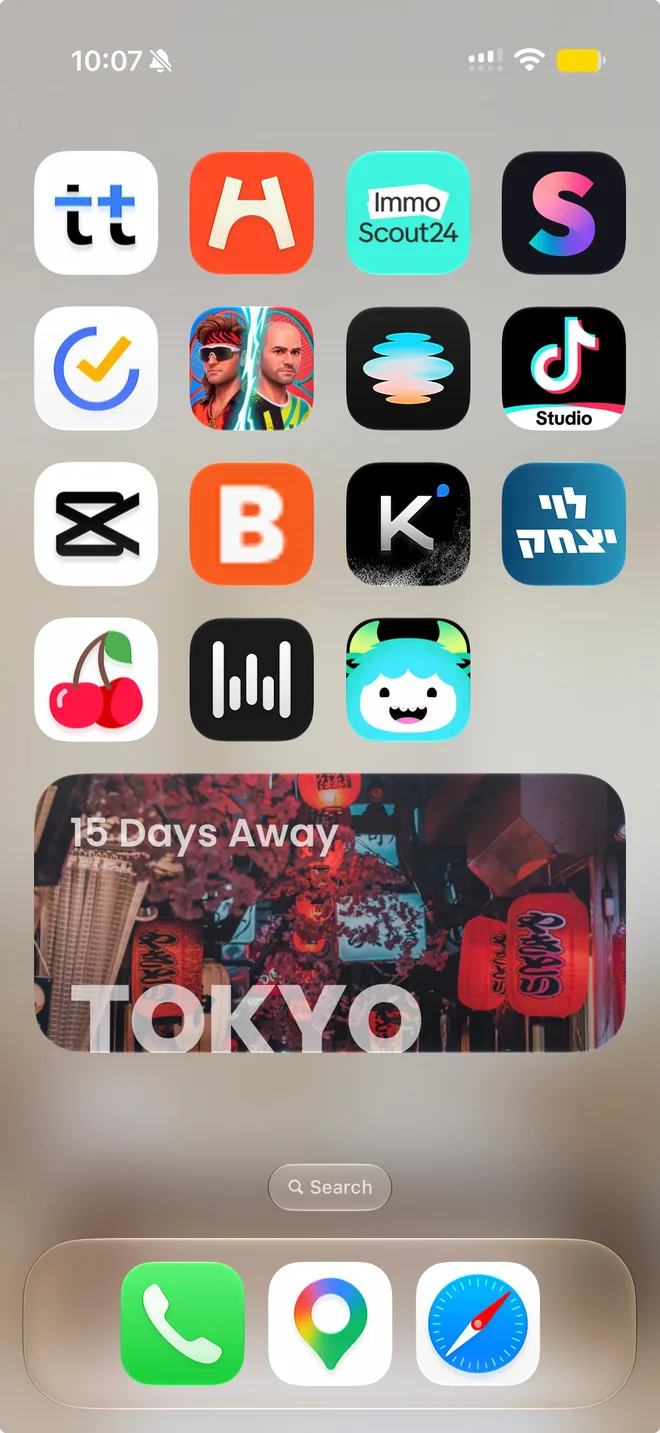
Yes. Soon's vacation countdown widget is free on both iPhone and Android, and it sits on your Home Screen (or your iPhone's Lock Screen) counting down to your trip without you ever opening the app. Setup takes under a minute: add your trip once, then place the widget like any other.
This is the hands-on version — every place the widget can live, step by step, plus the honest answer for desktop. If you're more curious about why a countdown on your home screen is worth having at all, that's covered in our post on the vacation countdown clock.
Step zero: give the widget something to count down to
A widget is just a window into the app, so it needs a trip before it has anything to show. Open Soon, add your destination and departure date, and you're done — that's the 30-second part. Everything below is about where that countdown appears.
How do I put a holiday countdown on my Home Screen?
On iPhone
- Touch and hold an empty spot on your Home Screen until the app icons start to jiggle.
- Tap Edit in the top-left corner, then Add Widget. (On older versions of iOS, you'll see a + button there instead.)
- Search for Soon and tap it.
- Swipe left or right to choose a widget size, then tap Add Widget.
- Drag it wherever you want it and tap Done.
Prefer to watch? Here's the same thing as a short video:
More short how-tos on the Soon YouTube channel.
On your iPhone Lock Screen
If you'd rather see the countdown before you even unlock your phone, iOS 16 and later let you put widgets on the Lock Screen too:
- Unlock with Face ID or Touch ID, but stay on the Lock Screen. Touch and hold it until Customize appears.
- Tap Customize, then choose Lock Screen.
- Tap the widget area just below the time.
- Find Soon in the list and tap the widget you want.
- Tap Done.
One thing to expect: Lock Screen widgets are small and drawn in a single tint to match your wallpaper, so you'll get the number, not the destination photo. For the full-color version with the photo and weather, the Home Screen widget is the one to use.
Adding the widget on Android (Samsung, Pixel, and others)
- Touch and hold an empty spot on your home screen.
- Tap Widgets.
- Scroll to Soon, or use the search bar at the top if your phone has one.
- Touch and hold the widget, drag it onto your home screen, and let go.
- If your launcher shows resize handles, drag them to make it bigger or smaller.
Menu names shift a little between manufacturers — Samsung, Pixel, and others each use their own launcher — but "touch and hold, then Widgets" gets you there on nearly every Android phone.
The Soon widget, the Lock Screen widget, and the Apple Watch complication are all free — no trial, no subscription, no "unlock the widget" screen. Download Soon for iPhone or Android.
Is there a widget that can count down to holidays?
Yes — but it depends on which "holiday" you mean. In the UK, Ireland, Australia, and much of Europe, a holiday is a vacation, so a holiday countdown is exactly what Soon does: add the trip, and the widget counts down to it.
If you mean a public holiday like Christmas or Thanksgiving, it comes down to whether you're going anywhere. Traveling to see family for the holidays? Add it as a trip and it works perfectly. Spending it at home? Soon is built around trips with a destination, so a general-purpose countdown app is probably the better fit for that one.
Can I add a countdown as a widget?
Yes, on any recent iPhone or Android phone. The catch is that neither one ships with a countdown-to-a-date widget built in — the Clock app's timer handles minutes and hours, not "23 days until Lisbon." You need an app that provides the widget, which is where something like Soon comes in.
Is there a vacation countdown widget for desktop?
Straight answer: Soon doesn't have a desktop app, so there's no official Soon widget for Windows or Mac. We'd rather tell you that than send you hunting for one. Here's what actually works instead:
- Mac, using your iPhone's widgets: macOS Sonoma and later can show iPhone widgets on the Mac desktop, as long as your iPhone uses the same Apple Account and is nearby or on the same Wi-Fi. Turn on Use iPhone widgets in System Settings › Desktop & Dock, then right-click the desktop and choose Edit Widgets. We haven't built a Mac version, so treat this as a handy workaround rather than an official feature.
- Windows: Rainmeter is a free, open-source desktop customization tool, and its community has made plenty of countdown skins you can point at your departure date.
- Mac, the tinkerer's route: Übersicht lets you build desktop widgets with a bit of code, countdowns included.
- Any computer: a countdown in your browser's new tab page, via an extension, puts the number in front of you every time you open a tab.
Widget not updating? Quick fixes
- On iPhone, iOS decides how often widgets refresh, so the number can lag for a little while. Low Power Mode slows refreshes down further. Opening Soon once usually nudges it; if it's still stuck, remove the widget and add it again.
- On Android, aggressive battery optimization — common on Samsung and some other brands — can pause widget updates. Go to Settings › Apps › Soon › Battery and set it to Unrestricted.
What makes a countdown widget worth keeping
If you're comparing options, the widget itself is the thing to judge — not the app's icon or its store screenshots. A good one updates on its own, is readable at the smallest size, and isn't locked behind a trial. That last one is more common than you'd think; we broke down the usual catches in what "free" actually means in a countdown app.
Frequently asked questions
Does the vacation countdown app have a widget?
Yes. Soon includes a free Home Screen widget for iPhone and Android, plus a Lock Screen widget on iPhone and an Apple Watch complication. Add a trip in the app once, then add the widget from your home screen's widget menu.
Is there a widget that can count down to holidays?
Yes. If your holiday is a trip, Soon's free widget counts down to it right on your home screen. For a stay-at-home public holiday, a general-purpose countdown app may suit you better, since Soon is built around trips with a destination.
How do I put a holiday countdown on my Home Screen?
On iPhone, touch and hold the Home Screen, tap Edit, then Add Widget, search for Soon, and pick a size. On Android, touch and hold the home screen, tap Widgets, find Soon, and drag it into place.
Can I add a countdown as a widget?
Yes, on iPhone and Android — but neither comes with a built-in widget that counts down to a date, so you need an app that provides one. Soon's countdown widget is free on both.